
Google Sheets Integration
Send form submissions to Google Sheets automatically. Connect your Google account, choose a spreadsheet, map your form fields to columns, and every new submission appears as a new row.
Use Cases: Shared lead lists, lightweight reporting, handing data to non-technical teammates, feeding dashboards built on top of Sheets.
Overview
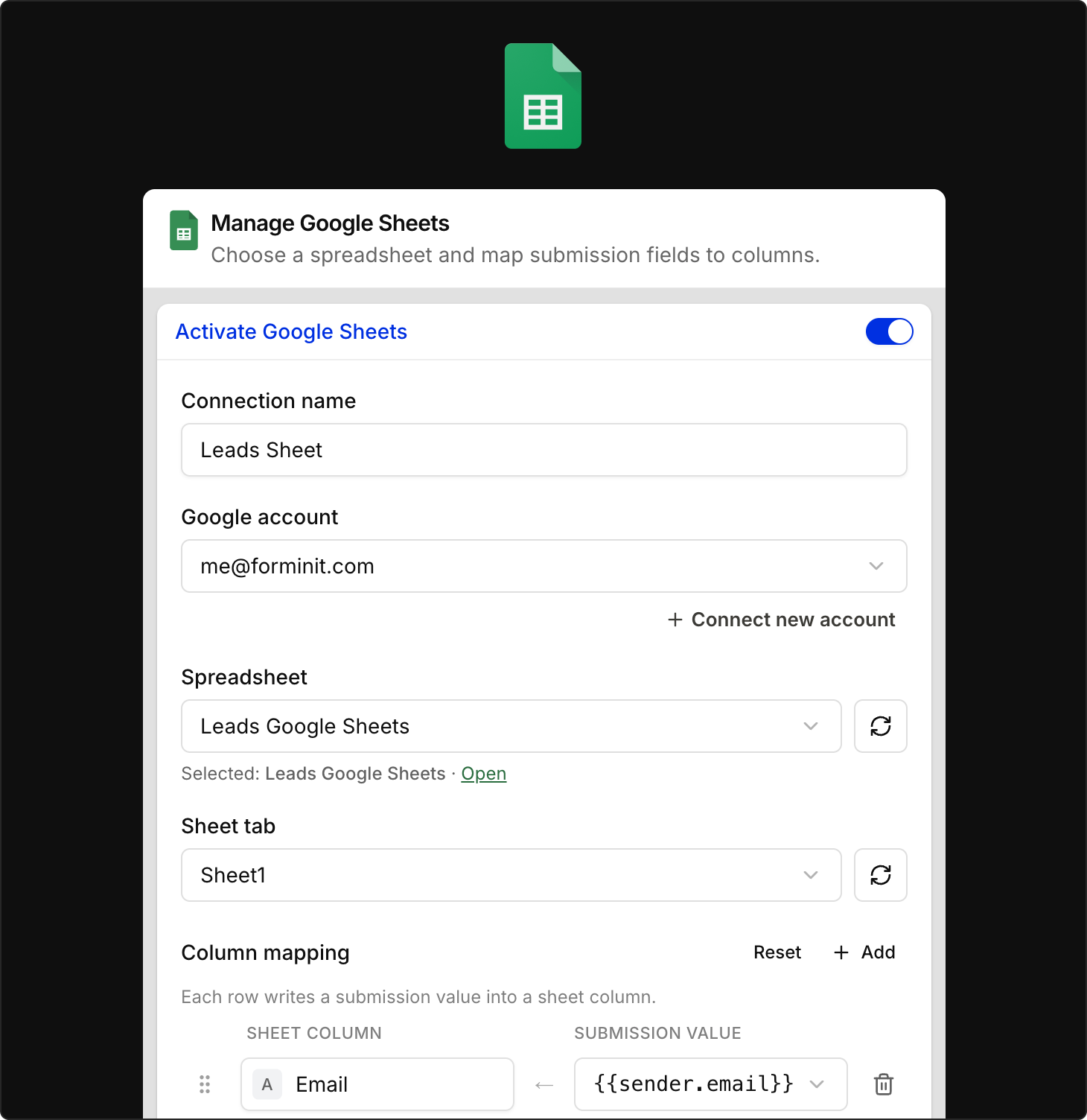
Section titled “Overview”The Google Sheets integration writes each new submission to a spreadsheet you choose, using a column mapping you control. Setup happens in your form’s Workflow: add a Send to Google Sheets step, connect a Google account, select or create a spreadsheet and sheet tab, map submission values to columns, send a test row, and publish.
Connected Google accounts are workspace-based: once an account is connected, any form in the workspace can use it.
The Google Sheets integration is available on the Pro plan and higher. See pricing for plan details.
Setup Guide
Section titled “Setup Guide”Step 1: Add a Google Sheets step
Section titled “Step 1: Add a Google Sheets step”- In your Forminit dashboard, open your form
- Select Workflow in the form header
- Select + where the step should run (beneath Submission received to record every submission, or on an If / else branch to record only matching ones), then choose Send to Google Sheets
- Select the step to open its settings
Step 2: Connect your Google account
Section titled “Step 2: Connect your Google account”- Click Connect new account
- Sign in with Google and approve the requested permissions
- Back in the step settings, your account appears in the Google account dropdown
If your workspace already has connected accounts, pick one from the dropdown instead.
Step 3: Choose a spreadsheet
Section titled “Step 3: Choose a spreadsheet”- Select an existing spreadsheet from the Spreadsheet dropdown, or create a new one from the step settings
- Use the refresh button if a recently created spreadsheet isn’t listed yet
- The Open link next to the selected spreadsheet takes you straight to it in Google Sheets
Step 4: Choose a sheet tab
Section titled “Step 4: Choose a sheet tab”Select the Sheet tab the rows should be written to, or create a new tab. This lets several forms share one spreadsheet with a tab per form.
Step 5: Map your columns
Section titled “Step 5: Map your columns”Each mapping row writes one submission value into one sheet column:
- Sheet column: the header name in your spreadsheet. Edit it freely; it doesn’t have to match the form field name
- Submission value: pick a form field or a metadata value (see the table below)
- Use + Add to map more values, the trash icon to remove a row, and the drag handle to reorder columns
- Reset restores the default mapping
Step 6: Send a test row
Section titled “Step 6: Send a test row”Click Send test row to write a sample row into the selected sheet tab. This adds a real row straight away, before you publish. Open the spreadsheet and confirm the columns land where you expect before going live.
Step 7: Publish
Section titled “Step 7: Publish”Select Publish to make the step live. Publishing also updates the sheet’s header row to match your column labels.
From this point on, every new submission that reaches the step is written to the spreadsheet as a new row.
Column Mapping Values
Section titled “Column Mapping Values”Besides your form fields, these metadata values are available:
| Value | Description |
|---|---|
{{@submission_id}} | Unique ID of the submission |
{{@submitted_at}} | Date and time the submission was received |
{{@form_id}} | ID of the form that received the submission |
Form fields are available as placeholders based on their block names, such as {{sender.email}} for the sender email block. A typical mapping looks like: column “Email” ← {{sender.email}}, column “Message” ← your message field, column “Received” ← {{@submitted_at}}.
Managing Connected Accounts
Section titled “Managing Connected Accounts”Connected Google accounts live at the workspace level and are managed from Account & Settings → Integrations:
- Add a new Google account to make it available to all forms in the workspace
- Revoke an account to disconnect it; connections using that account stop writing to their spreadsheets
You can also revoke Forminit’s access from your Google account’s security settings at any time.
- Test after changing the mapping: Send a test row whenever you add, rename, or reorder columns to confirm the sheet matches
- One tab per form: Sharing a spreadsheet across forms works best with a dedicated tab for each form
- Keep history with CSV: The integration writes new submissions only; use CSV export to backfill older submissions into the same sheet
Troubleshooting
Section titled “Troubleshooting”| Issue | Solution |
|---|---|
| Rows aren’t appearing | Check that the workflow is published, that the submission reached the Send to Google Sheets step (it may be on a different If / else branch), and that the step’s Google account hasn’t been revoked |
| Test row works but submissions don’t | Test rows are written before you publish. Select Publish so the step runs for new submissions |
| Spreadsheet list won’t load | Use the refresh button, or create a new spreadsheet from the step settings; if browsing Google Drive is temporarily unavailable, the step settings will tell you |
| Account was revoked | Reconnect it from Account & Settings → Integrations, or switch the step to another account, then publish again |
| Sheet tab was deleted or renamed | Re-select the tab in the step settings and publish again |
| A row failed to write | Open the submission’s Workflow section to see the error and retry the step. A retry adds a new row, so check the sheet first |
Which plans include the Google Sheets integration?
Section titled “Which plans include the Google Sheets integration?”The Google Sheets integration is available on the Pro plan and higher. It is not included on the Free plan.
Can I connect more than one Google account?
Section titled “Can I connect more than one Google account?”Yes. Click Connect new account in the Send to Google Sheets step settings, or add accounts from Account & Settings → Integrations tab. Connected accounts are workspace-based, so every form in the workspace can use them.
Are existing submissions sent to the spreadsheet?
Section titled “Are existing submissions sent to the spreadsheet?”No. Only submissions received while the integration is active are written to the sheet. For historical data, download a CSV export and paste it into your spreadsheet.
Can multiple forms write to the same spreadsheet?
Section titled “Can multiple forms write to the same spreadsheet?”Yes. Point each form’s connection at the same spreadsheet and choose a different sheet tab per form, or share one tab if the forms use the same column mapping.
Can I rename the spreadsheet columns?
Section titled “Can I rename the spreadsheet columns?”Yes. Each mapping row has an editable sheet column name, so your spreadsheet headers don’t have to match your form field names.
What happens if I revoke a Google account?
Section titled “What happens if I revoke a Google account?”Connections that use the revoked account stop writing to their spreadsheets. Reconnect the account or switch the connection to a different account to resume.
Related
Section titled “Related”- Webhooks - Send submission data to any external URL
- Zapier - Connect submissions to thousands of other apps
- Email Notifications - Receive submissions via email
Was this page helpful?
Thanks for your feedback.