
Slack Notifications
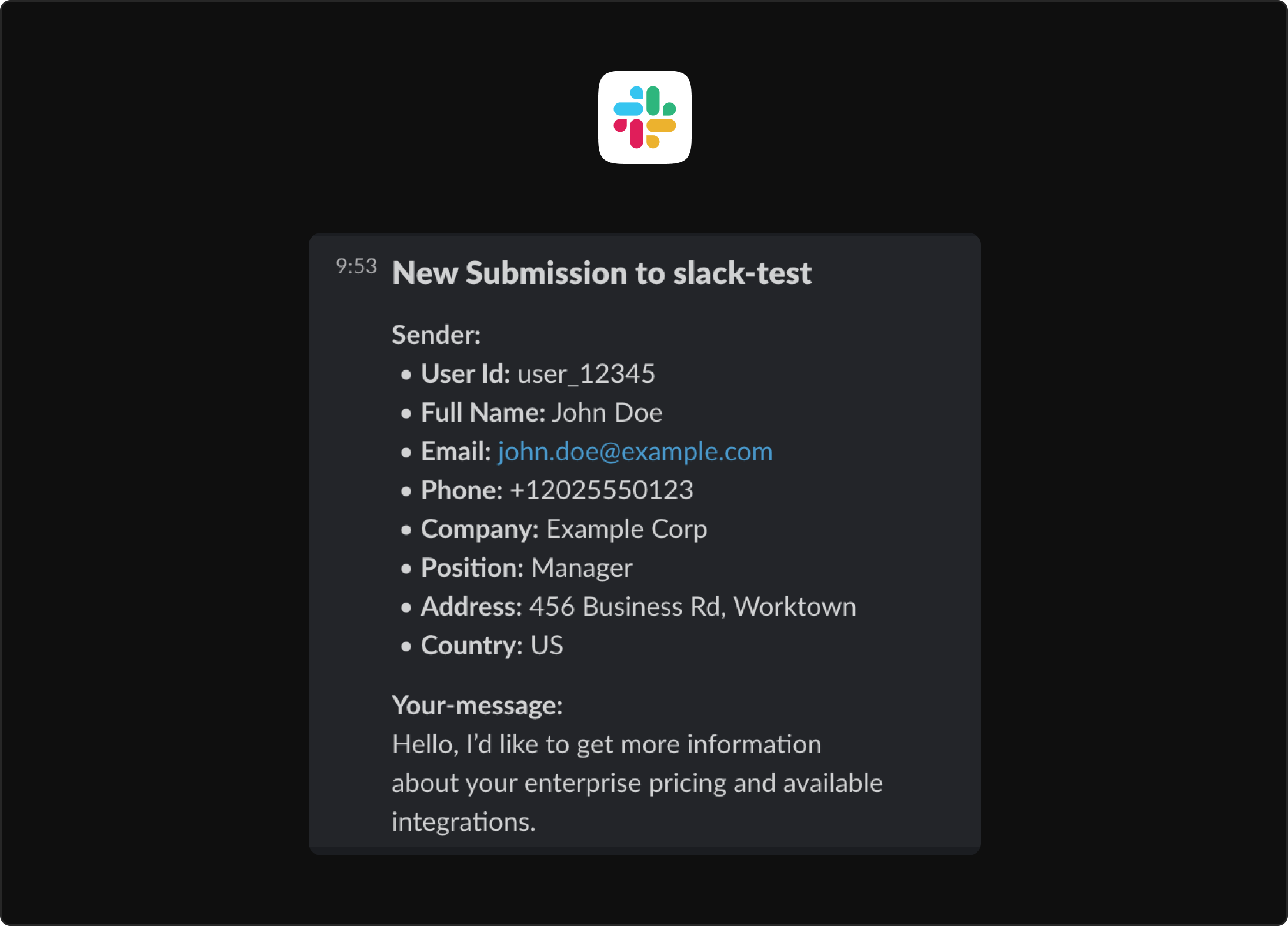
Receive instant Slack notifications whenever someone submits your form. Get submission details delivered directly to any Slack channel.
Use Cases: Lead alerts, support ticket notifications, team collaboration, real-time monitoring.
Overview
Section titled “Overview”Slack Incoming Webhooks allow external applications to post messages into Slack. By connecting your Forminit form to a Slack webhook, you’ll receive formatted notifications with submission data every time someone fills out your form.
Setup Guide
Section titled “Setup Guide”Step 1: Create a Slack App
Section titled “Step 1: Create a Slack App”- Go to the Slack App Management Dashboard
- Click Create New App
- Select From scratch
Step 2: Configure Your App
Section titled “Step 2: Configure Your App”- Enter an App Name (e.g., “Forminit Notifications”)
- Select the Workspace where you want to receive notifications
- Click Create App
Step 3: Enable Incoming Webhooks
Section titled “Step 3: Enable Incoming Webhooks”- In your app settings, find the Features section
- Click Incoming Webhooks
- Toggle Activate Incoming Webhooks to On
Step 4: Create a Webhook URL
Section titled “Step 4: Create a Webhook URL”- Click Add New Webhook to Workspace
- Select the channel where you want to receive form notifications
- Click Allow to authorize the app
- Copy the generated Webhook URL (starts with
https://hooks.slack.com/services/...)
Step 5: Connect to Forminit
Section titled “Step 5: Connect to Forminit”- Open your form in the Forminit dashboard
- Select Workflow in the form header
- Select + where the step should run (beneath Submission received, or on an If / else branch to notify only for matching submissions), then choose Send Slack notification
- Select the step and paste your Slack Webhook URL into its settings
- Select Publish to make the change live
See Workflow for routing submissions to different channels with conditions.
How It Works
Section titled “How It Works”Once configured, every new form submission will trigger a Slack message to your selected channel. The notification includes:
- Form name
- Submission timestamp
- All submitted field values
- Sender information (name, email, etc.)
- Link to view full submission in Forminit
- Create a dedicated channel: Set up a channel like
#form-submissionsor#leadsto keep notifications organized - Use channel mentions: Configure Slack channel settings to notify specific team members
- Multiple forms: Each form can send to a different Slack channel using unique webhook URLs
Troubleshooting
Section titled “Troubleshooting”| Issue | Solution |
|---|---|
| Not receiving notifications | Verify the webhook URL is correct and the Slack app is still active |
| Wrong channel | Create a new webhook URL for the correct channel and update in Forminit |
| App was deleted | Create a new Slack app and webhook, then update your Forminit settings |
Related
Section titled “Related”- Webhooks - Send submission data to any external URL
- Email Notifications - Receive submissions via email
- Discord Notifications - Receive submissions via Discord
- Google Sheets - Send submissions to a spreadsheet as rows
Was this page helpful?
Thanks for your feedback.