
Slack Notifications
Receive instant Slack notifications whenever someone submits your form. Get submission details delivered directly to any Slack channel.
Use Cases: Lead alerts, support ticket notifications, team collaboration, real-time monitoring.
Overview
Section titled “Overview”Slack Incoming Webhooks allow external applications to post messages into Slack. By connecting your Forminit form to a Slack webhook, you’ll receive formatted notifications with submission data every time someone fills out your form.
Setup Guide
Section titled “Setup Guide”Step 1: Create a Slack App
Section titled “Step 1: Create a Slack App”- Go to the Slack App Management Dashboard
- Click Create New App
- Select From scratch
Step 2: Configure Your App
Section titled “Step 2: Configure Your App”- Enter an App Name (e.g., “Forminit Notifications”)
- Select the Workspace where you want to receive notifications
- Click Create App
Step 3: Enable Incoming Webhooks
Section titled “Step 3: Enable Incoming Webhooks”- In your app settings, find the Features section
- Click Incoming Webhooks
- Toggle Activate Incoming Webhooks to On
Step 4: Create a Webhook URL
Section titled “Step 4: Create a Webhook URL”- Click Add New Webhook to Workspace
- Select the channel where you want to receive form notifications
- Click Allow to authorize the app
- Copy the generated Webhook URL (starts with
https://hooks.slack.com/services/...)
Step 5: Connect to Forminit
Section titled “Step 5: Connect to Forminit”- Go to your Forminit dashboard
- Open Form Settings for your form
- Navigate to Actions → Send Slack notification
- Paste your Slack Webhook URL
- Save changes
How It Works
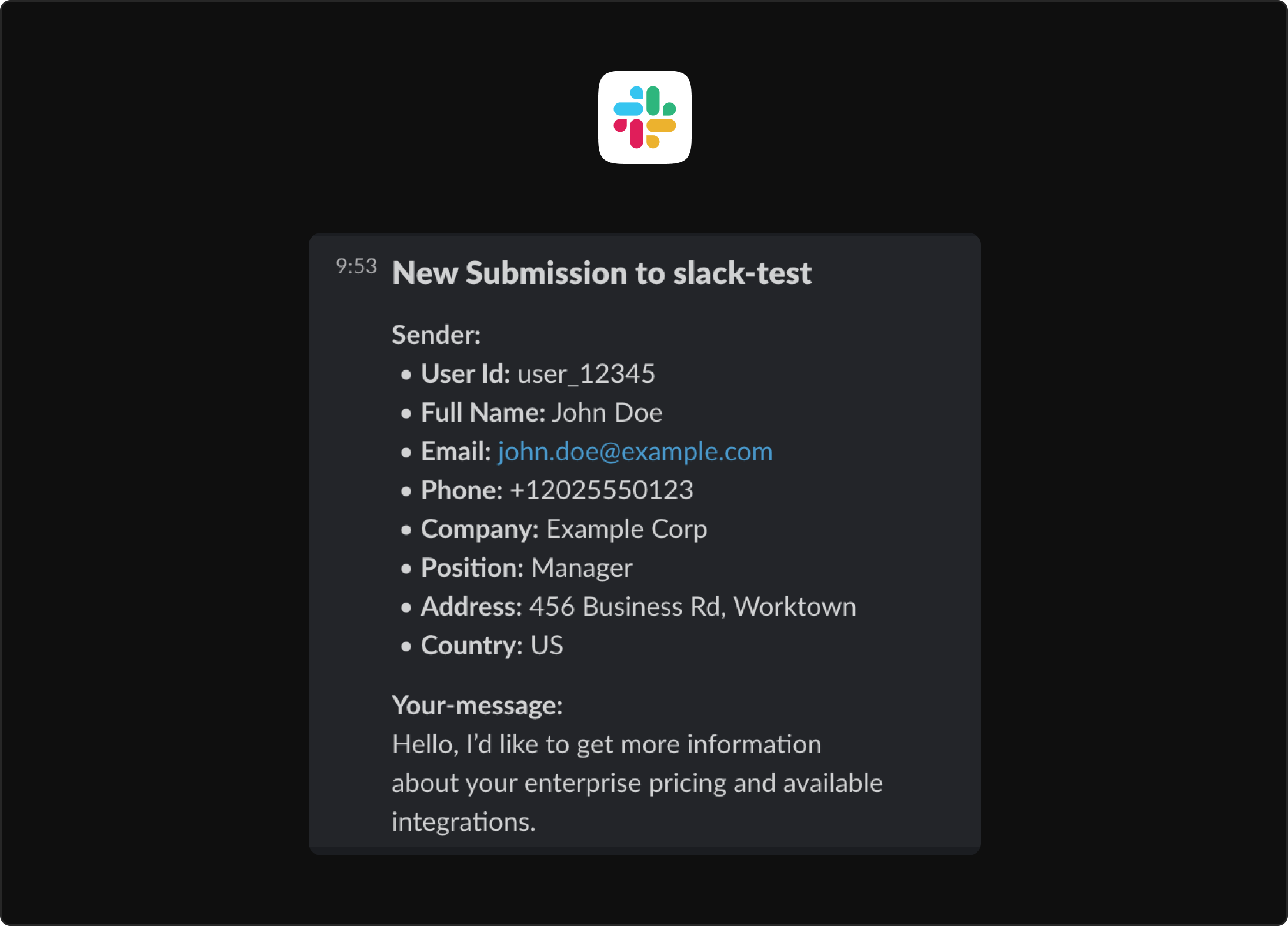
Section titled “How It Works”Once configured, every new form submission will trigger a Slack message to your selected channel. The notification includes:
- Form name
- Submission timestamp
- All submitted field values
- Sender information (name, email, etc.)
- Link to view full submission in Forminit
- Create a dedicated channel: Set up a channel like
#form-submissionsor#leadsto keep notifications organized - Use channel mentions: Configure Slack channel settings to notify specific team members
- Multiple forms: Each form can send to a different Slack channel using unique webhook URLs
Troubleshooting
Section titled “Troubleshooting”| Issue | Solution |
|---|---|
| Not receiving notifications | Verify the webhook URL is correct and the Slack app is still active |
| Wrong channel | Create a new webhook URL for the correct channel and update in Forminit |
| App was deleted | Create a new Slack app and webhook, then update your Forminit settings |
Related
Section titled “Related”- Webhooks - Send submission data to any external URL
- Email Notifications - Receive submissions via email
- Discord Notifications - Receive submissions via Discord
Was this page helpful?
Thanks for your feedback.