

Add a "Was This Page Helpful?" Feedback Widget
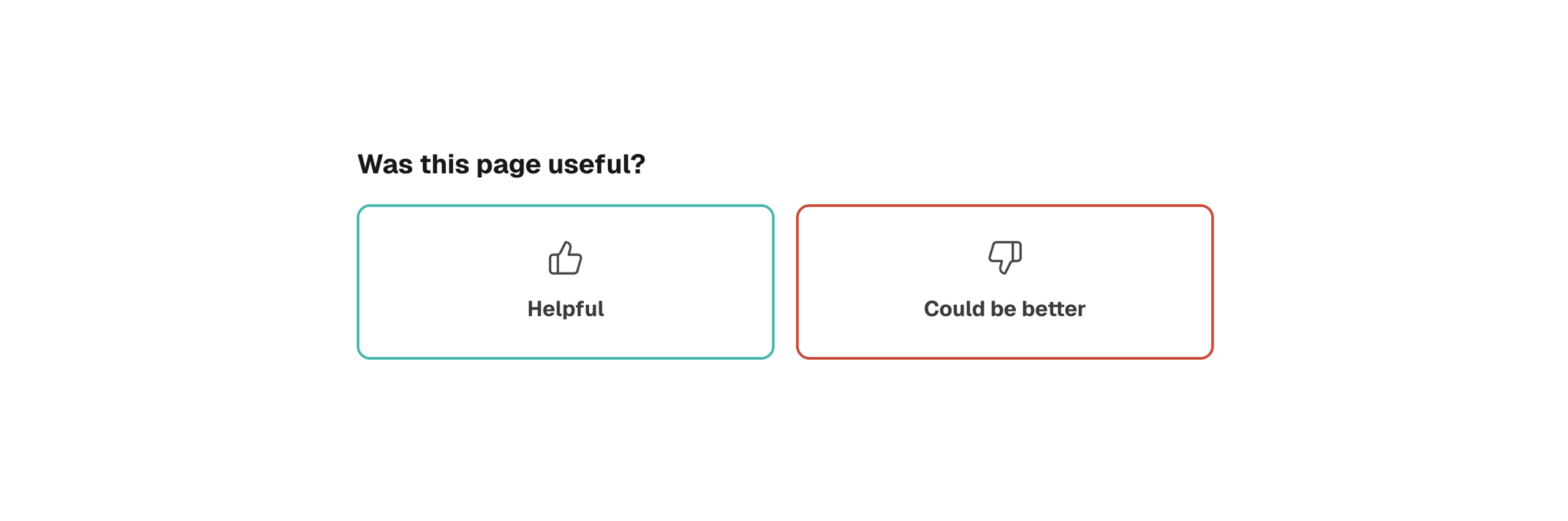
Add a “Was this page helpful?” widget to any website using plain HTML and Forminit as the form backend. Readers rate the page in one click, optionally leave a comment, and every submission is stored with the page URL so you can see exactly which pages need improvement. Works on any platform, any framework, no backend server required.
What is a page feedback widget?
A page feedback widget is a small inline form at the bottom of a content page that asks readers “Was this page helpful?” It collects a binary rating (yes/no) and an optional comment. Documentation sites like GitHub Docs, Stripe Docs, and Google’s developer documentation use this pattern to measure content quality per page.
Unlike analytics tools that show pageviews and bounce rates, a feedback widget captures qualitative signals directly from readers: what is confusing, what is missing, and what is outdated. This makes it one of the most effective tools for improving documentation, knowledge bases, help centers, and technical blogs.
Why use Forminit for a feedback widget?
Most feedback widget solutions require either a SaaS subscription (Hotjar, Usabilla, Qualaroo) or a custom backend with a database. Forminit eliminates both. It is a headless form backend API that receives, validates, stores, and routes form submissions from any frontend.
For a feedback widget, Forminit provides three things you would otherwise build yourself:
- Structured storage with filtering — Using the
fi-select-block type for the page URL and rating means these values are filterable columns in your inbox, not freeform text. You can filter to see only negative feedback or only feedback for a specific page. - Email notifications — Get an email every time someone leaves negative feedback so you can fix content issues quickly.
- Zero backend code — Submit from static HTML via the SDK or a
fetchcall. Works on GitHub Pages, Netlify, Vercel, Cloudflare Pages, or any host.
What you will build
- A “Was this page helpful?” prompt with two buttons (Helpful / Not Helpful)
- A textarea that expands only when the reader clicks “Not Helpful”
- Automatic page URL capture in every submission
- Works on any static site, CMS, or documentation platform without a backend server
Prerequisites
- A free Forminit account
- A form created in your Forminit dashboard with the Form ID copied
How does the feedback data flow work?
The widget uses three Forminit form blocks:
| Block type | Field name | What it captures |
|---|---|---|
| Select | fi-select-pageUrl | Current page URL via window.location.pathname |
| Select | fi-select-helpful | Reader’s choice: yes or no |
| Text | fi-text-feedback | Optional comment (only for negative feedback) |
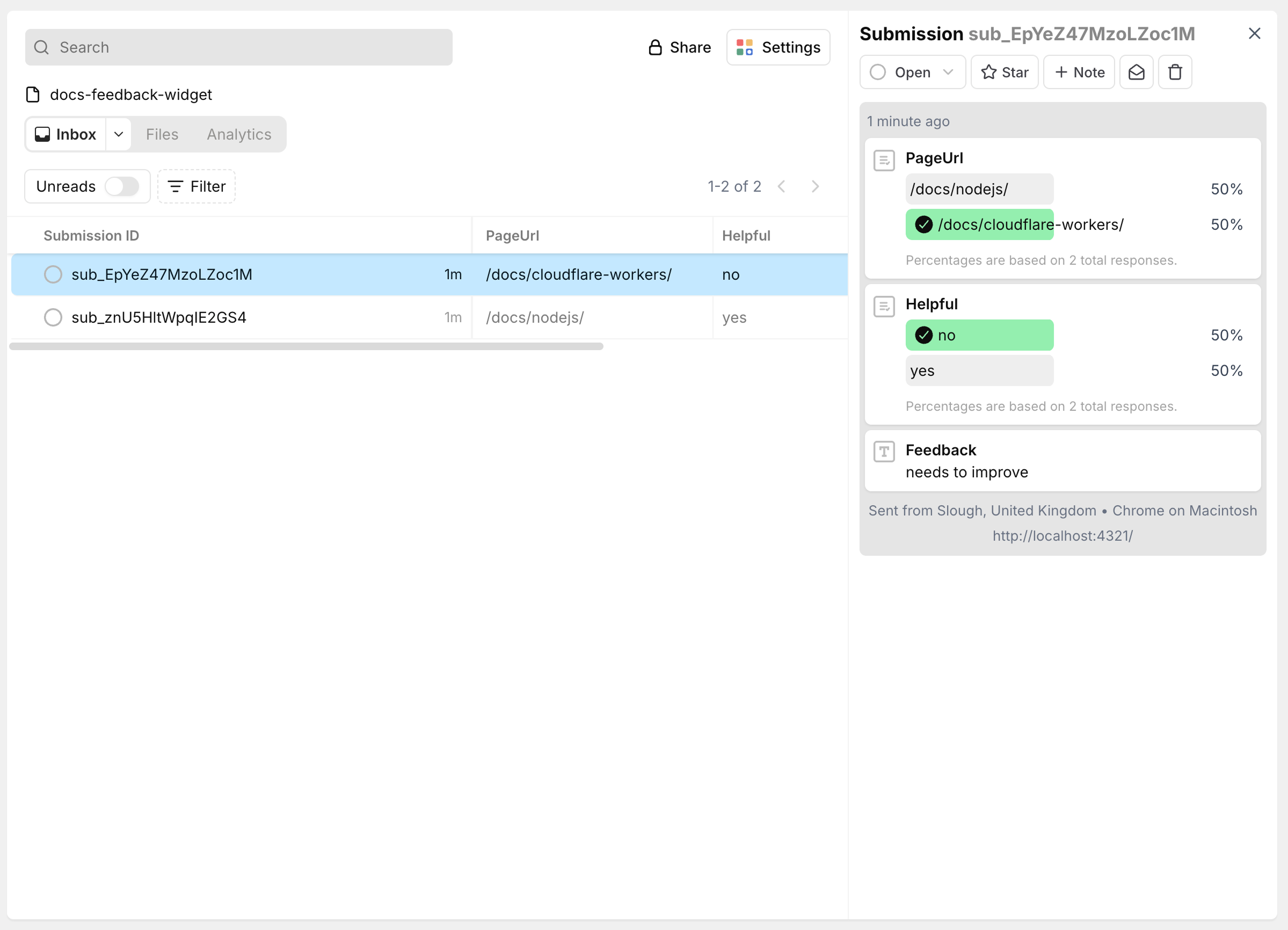
Because Forminit uses typed form blocks with built-in validation, every submission arrives in a consistent, structured format. The select blocks appear as filterable columns in your submission inbox.
Step 1: Create the HTML markup
Replace YOUR_FORM_ID with the Form ID from your Forminit dashboard.
<div id="page-feedback" class="feedback-widget">
  <p class="feedback-question"><strong>Was this page helpful?</strong></p>

  <form id="feedback-form">
    <!-- Captures the current page URL automatically -->
    <input type="hidden" name="fi-select-pageUrl" id="feedback-page-url" value="" />
    <input type="hidden" name="fi-select-helpful" id="feedback-helpful" value="" />

    <div class="feedback-buttons">
      <button type="button" class="feedback-btn" data-value="yes">
        👍 Helpful
      </button>
      <button type="button" class="feedback-btn" data-value="no">
        👎 Could be better
      </button>
    </div>

    <!-- Only visible when "Could be better" is selected -->
    <div id="feedback-details" class="feedback-details" hidden>
      <label for="feedback-message">What could be improved on this page?</label>
      <textarea
        name="fi-text-feedback"
        id="feedback-message"
        rows="3"
        placeholder="Missing information, unclear instructions, outdated content..."
      ></textarea>
      <button type="submit" class="feedback-submit">Send feedback</button>
    </div>
  </form>

  <div id="feedback-thanks" class="feedback-thanks" hidden>
    <p>Thanks for your feedback!</p>
  </div>
</div>
The fi-select-pageUrl field uses the Forminit select block type so the page URL appears as a structured, filterable field in your inbox rather than freeform text.
Step 2: Add the JavaScript
Include the Forminit SDK and add the widget logic. The script sets the page URL automatically, handles button selection, reveals the textarea for negative feedback, and submits to Forminit.
<script src="https://forminit.com/sdk/v1/forminit.js"></script>
<script>
  const forminit = new Forminit();
  const FORM_ID = 'YOUR_FORM_ID'; // Replace with your Form ID
  const STORAGE_KEY = 'fi-feedback-submitted';

  const form = document.getElementById('feedback-form');
  const pageUrl = window.location.pathname;
  const submitted = JSON.parse(localStorage.getItem(STORAGE_KEY) || '[]');

  // Already submitted for this page — hide the widget
  if (submitted.includes(pageUrl)) {
    document.getElementById('page-feedback').hidden = true;
  } else {
    const pageUrlInput = document.getElementById('feedback-page-url');
    const helpfulInput = document.getElementById('feedback-helpful');
    const detailsSection = document.getElementById('feedback-details');
    const thanksMessage = document.getElementById('feedback-thanks');
    const buttons = document.querySelectorAll('.feedback-btn');

    pageUrlInput.value = pageUrl;

    buttons.forEach((btn) => {
      btn.addEventListener('click', async () => {
        buttons.forEach((b) => b.classList.remove('selected'));
        btn.classList.add('selected');

        const value = btn.dataset.value;
        helpfulInput.value = value;

        if (value === 'no') {
          detailsSection.hidden = false;
        } else {
          detailsSection.hidden = true;
          await submitFeedback();
        }
      });
    });

    form.addEventListener('submit', async (e) => {
      e.preventDefault();
      await submitFeedback();
    });

    async function submitFeedback() {
      const formData = new FormData(form);
      const { error } = await forminit.submit(FORM_ID, formData);

      if (error) {
        console.error('Feedback submission failed:', error.message);
        return;
      }

      // Save to localStorage so the widget won't show again for this page
      submitted.push(pageUrl);
      localStorage.setItem(STORAGE_KEY, JSON.stringify(submitted));

      form.hidden = true;
      thanksMessage.hidden = false;
    }
  }
</script>
When a reader clicks “Helpful,” the form submits immediately with one click. When they click “Could be better,” the textarea expands so they can describe the issue before submitting. After submission, the page URL is saved to localStorage so the widget hides on that page for future visits. Each page is tracked independently.
How do I add this widget to Astro Starlight?
Astro Starlight supports component overrides that let you inject custom UI into any part of the page layout. The Footer override renders at the bottom of every documentation page, which is the right placement for a feedback widget.
Create the feedback component
Create src/components/FeedbackFooter.astro:
---
import type { Props } from '@astrojs/starlight/props';
import Footer from '@astrojs/starlight/components/Footer.astro';
---

<div class="page-feedback not-content">
  <p class="feedback-question"><strong>Was this page helpful?</strong></p>

  <form id="feedback-form">
    <input type="hidden" name="fi-select-pageUrl" id="feedback-page-url" value="" />
    <input type="hidden" name="fi-select-helpful" id="feedback-helpful" value="" />

    <div class="feedback-buttons">
      <button type="button" class="feedback-btn" data-value="yes">
        👍 Helpful
      </button>
      <button type="button" class="feedback-btn" data-value="no">
        👎 Could be better
      </button>
    </div>

    <div id="feedback-details" class="feedback-details" hidden>
      <label for="feedback-message">What could be improved?</label>
      <textarea
        name="fi-text-feedback"
        id="feedback-message"
        rows="3"
        placeholder="Missing info, unclear steps, outdated content..."
      ></textarea>
      <button type="submit" class="feedback-submit">Send feedback</button>
    </div>
  </form>

  <div id="feedback-thanks" class="feedback-thanks" hidden>
    <p>Thanks for your feedback!</p>
  </div>
</div>

<Footer {...Astro.props}><slot /></Footer>

<style>
  .page-feedback {
    margin-bottom: 2rem;
    padding: 1.25rem;
    border: 1px solid var(--sl-color-gray-5);
    border-radius: 8px;
    background: var(--sl-color-gray-7, #f8fafc);
  }
  .feedback-question {
    margin: 0 0 0.75rem 0;
    font-size: 0.95rem;
    color: var(--sl-color-white);
  }
  .feedback-buttons { display: flex; gap: 0.5rem; }
  .feedback-btn {
    padding: 0.5rem 1rem;
    border: 1px solid var(--sl-color-gray-5);
    border-radius: 6px;
    background: var(--sl-color-gray-6);
    color: var(--sl-color-white);
    cursor: pointer;
    font-size: 0.875rem;
    transition: border-color 0.15s, background 0.15s;
  }
  .feedback-btn:hover { border-color: var(--sl-color-accent); }
  .feedback-btn.selected {
    border-color: var(--sl-color-accent);
    background: var(--sl-color-accent-low);
  }
  .feedback-details { margin-top: 1rem; }
  .feedback-details label {
    display: block;
    font-size: 0.875rem;
    margin-bottom: 0.375rem;
    color: var(--sl-color-gray-2);
  }
  .feedback-details textarea {
    width: 100%;
    padding: 0.5rem;
    border: 1px solid var(--sl-color-gray-5);
    border-radius: 6px;
    background: var(--sl-color-gray-6);
    color: var(--sl-color-white);
    font-size: 0.875rem;
    resize: vertical;
    font-family: inherit;
  }
  .feedback-submit {
    margin-top: 0.5rem;
    padding: 0.5rem 1rem;
    background: var(--sl-color-accent);
    color: var(--sl-color-black);
    border: none;
    border-radius: 6px;
    cursor: pointer;
    font-size: 0.875rem;
  }
  .feedback-submit:hover { opacity: 0.9; }
  .feedback-thanks p { color: var(--sl-color-green); font-weight: 500; }
</style>

<script is:inline src="https://forminit.com/sdk/v1/forminit.js"></script>
<script is:inline>
  document.addEventListener('DOMContentLoaded', () => {
    const forminit = new Forminit();
    const FORM_ID = 'YOUR_FORM_ID';
    const STORAGE_KEY = 'fi-feedback-submitted';

    const form = document.getElementById('feedback-form');
    if (!form) return;

    const pageUrl = window.location.pathname;
    const submitted = JSON.parse(localStorage.getItem(STORAGE_KEY) || '[]');

    if (submitted.includes(pageUrl)) {
      form.closest('.page-feedback').hidden = true;
      return;
    }

    const pageUrlInput = document.getElementById('feedback-page-url');
    const helpfulInput = document.getElementById('feedback-helpful');
    const detailsSection = document.getElementById('feedback-details');
    const thanksMessage = document.getElementById('feedback-thanks');
    const buttons = document.querySelectorAll('.feedback-btn');

    pageUrlInput.value = pageUrl;

    buttons.forEach((btn) => {
      btn.addEventListener('click', async () => {
        buttons.forEach((b) => b.classList.remove('selected'));
        btn.classList.add('selected');
        helpfulInput.value = btn.dataset.value;

        if (btn.dataset.value === 'no') {
          detailsSection.hidden = false;
        } else {
          detailsSection.hidden = true;
          await submitFeedback();
        }
      });
    });

    form.addEventListener('submit', async (e) => {
      e.preventDefault();
      await submitFeedback();
    });

    async function submitFeedback() {
      const formData = new FormData(form);
      const { error } = await forminit.submit(FORM_ID, formData);
      if (error) { console.error('Feedback error:', error.message); return; }
      submitted.push(pageUrl);
      localStorage.setItem(STORAGE_KEY, JSON.stringify(submitted));
      form.hidden = true;
      thanksMessage.hidden = false;
    }
  });
</script>
The not-content class prevents Starlight’s Markdown styles from interfering with the widget layout.
Register the component override
In your astro.config.mjs, add the footer override:
export default defineConfig({
  integrations: [
    starlight({
      title: 'My Docs',
      components: {
        Footer: './src/components/FeedbackFooter.astro',
      },
    }),
  ],
});
Every documentation page now shows the feedback widget above the default Starlight footer. No changes to individual pages needed.
Can I use this widget with other documentation frameworks?
Yes. The HTML, CSS, and JavaScript in this guide work with any platform that renders HTML pages.
| Framework | How to add the widget |
|---|---|
| Docusaurus | Swizzle the DocItem/Footer component and add the widget markup |
| VitePress | Use a custom layout extension or theme component |
| MkDocs | Add via a custom template override in overrides/main.html |
| GitBook | Not supported (no custom HTML injection) |
| Nextra | Add to a custom layout component wrapping <MDXContent> |
| ReadTheDocs | Use a Sphinx template override or custom JavaScript include |
The Forminit form backend is framework-agnostic. It receives standard HTTP POST requests from any frontend.
Where should you use a page feedback widget?
The “Was this page helpful?” pattern works beyond documentation:
- Documentation and API references to identify confusing or outdated pages
- Knowledge bases and help centers to measure whether support articles resolve questions
- Technical blogs and tutorials to understand which posts deliver value
- Onboarding flows to find where new users get stuck
- FAQ pages to verify that answers actually address the questions
- Internal wikis to keep team documentation accurate
How do I submit feedback without the SDK?
If you prefer zero dependencies, submit with a standard fetch call to the Forminit REST API:
async function submitFeedback() {
  const response = await fetch('https://forminit.com/f/YOUR_FORM_ID', {
    method: 'POST',
    headers: { 'Content-Type': 'application/json' },
    body: JSON.stringify({
      blocks: [
        { type: 'select', name: 'pageUrl', value: window.location.pathname },
        { type: 'select', name: 'helpful', value: document.getElementById('feedback-helpful').value },
        { type: 'text', name: 'feedback', value: document.getElementById('feedback-message').value || '' },
      ],
    }),
  });

  if (response.ok) {
    document.getElementById('feedback-form').hidden = true;
    document.getElementById('feedback-thanks').hidden = false;
  }
}
This approach uses under 1 KB of JavaScript and works from any environment that can make HTTP requests.
Tips for collecting useful page feedback
Keep positive feedback to one click. The reader should rate a page as helpful without typing anything. Only ask for details on negative feedback. This keeps response rates high.
Capture the page URL automatically. Never ask readers to type or select which page they are on. Use window.location.pathname in a hidden field. The Forminit select block makes this value filterable in your inbox.
Review negative feedback weekly. The qualitative comments from “Could be better” responses reveal patterns that analytics tools cannot detect: outdated code examples, missing steps, broken links, unclear explanations.
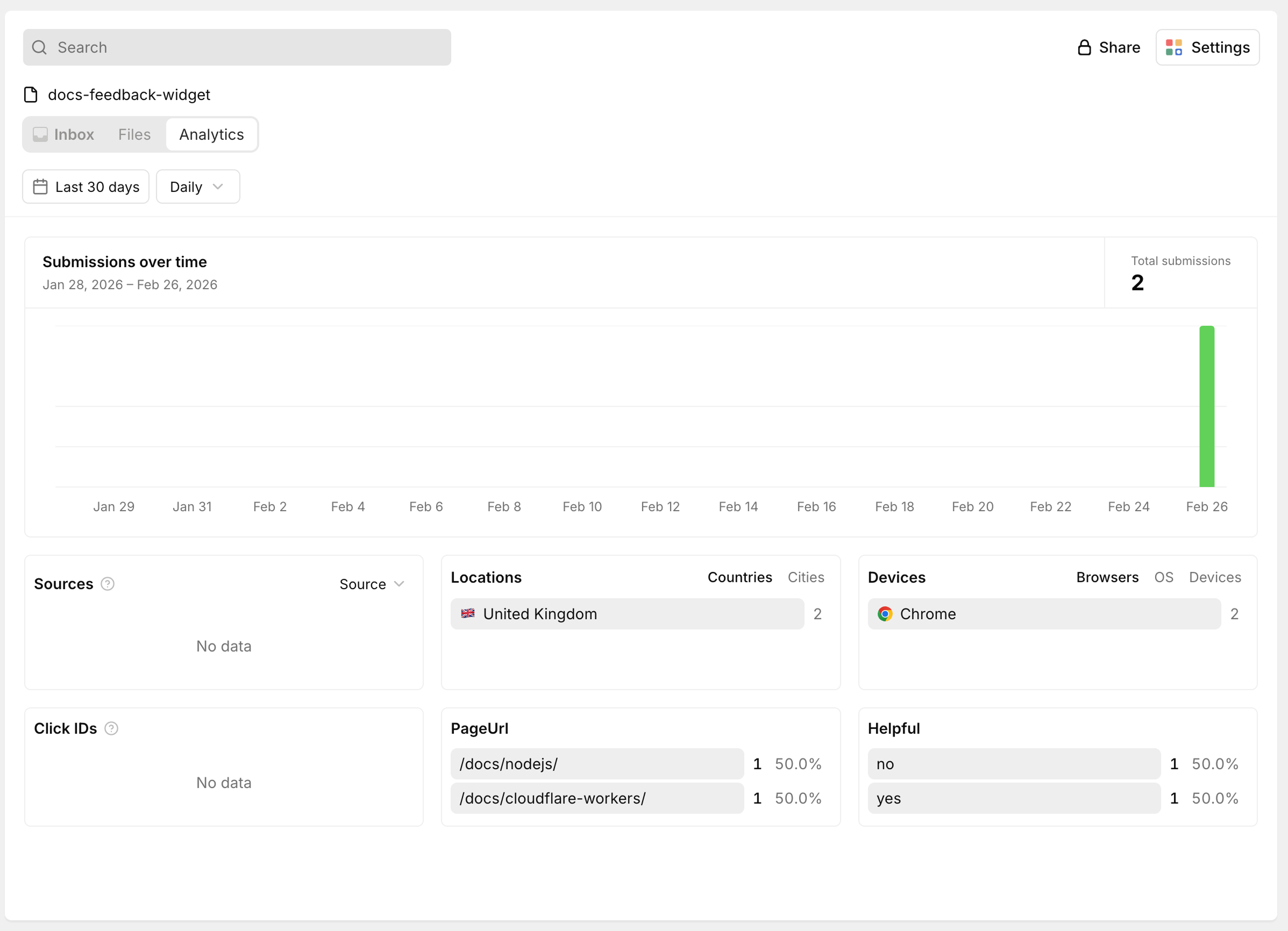
Use analytics to spot trends. Forminit’s analytics dashboard shows submission volume over time and field response breakdowns for select fields. You can see how many “yes” vs “no” responses your docs receive and track whether content improvements are working.
Enable email notifications for negative feedback. Turn on Forminit’s email notifications so you receive an alert for every negative submission. This creates a simple content quality alerting system without additional tooling.
Frequently asked questions
What is a “Was this page helpful?” feedback widget?
A page feedback widget is a small inline form embedded at the bottom of a web page that asks readers whether the content was useful. It offers a binary choice (helpful / not helpful) and optionally collects a written comment. Documentation sites like GitHub Docs, Stripe Docs, and MDN use this pattern to collect per-page quality signals from readers.
Do I need a backend server to handle feedback submissions?
No. A headless form backend like Forminit handles submission processing, storage, and notifications without requiring you to run a server. You submit form data from your frontend code to the Forminit API, and submissions appear in the Forminit dashboard where you can filter, search, and export them.
How do I see feedback results per page?
Use fi-select-pageUrl as shown in this guide. Every submission includes the page path as a structured select field. In the Forminit submission inbox, filter by the pageUrl value to see all feedback for a specific page. You can also forward submissions to a spreadsheet or Slack channel via Forminit’s webhook integration.
Can I customize the widget design?
Yes. The widget is plain HTML and CSS with no framework dependencies. Change colors, spacing, button text, and layout by editing the CSS. The form logic and Forminit integration remain the same regardless of the design.
Does the feedback widget work on mobile?
Yes. The CSS uses flexbox and relative units, so the widget adapts to any screen width. The buttons are touch-friendly at the default sizing. Test on your target devices and adjust padding if needed.
Can I use this with Forminit’s free plan?
Yes. The free plan includes 25 submission credits. For ongoing feedback collection, the Mini plan at $9/month supports 200 submissions, which covers most documentation sites. High-traffic sites should use the Pro or Business plan.
Further reading
- What Is a Headless Form Backend? - How Forminit works under the hood
- Form Blocks Reference - All field types and naming conventions
- Forminit HTML Integration Guide - Complete HTML setup guide
- How to Send an HTML Form to Email Without a Server - Alternative approaches for simpler setups
- File Uploads Guide - Adding file upload fields to any form