

Introducing AI Classify for form workflows
Summary
AI Classify is a new Workflow step. It gives AI the fields you choose, asks up to 10 questions about each submission and saves the answers as a Choice, a Score or a Yes / No. Later steps route, alert and file submissions on those answers, and the form's Analytics page counts them. AI Classify is on every plan, including Free.
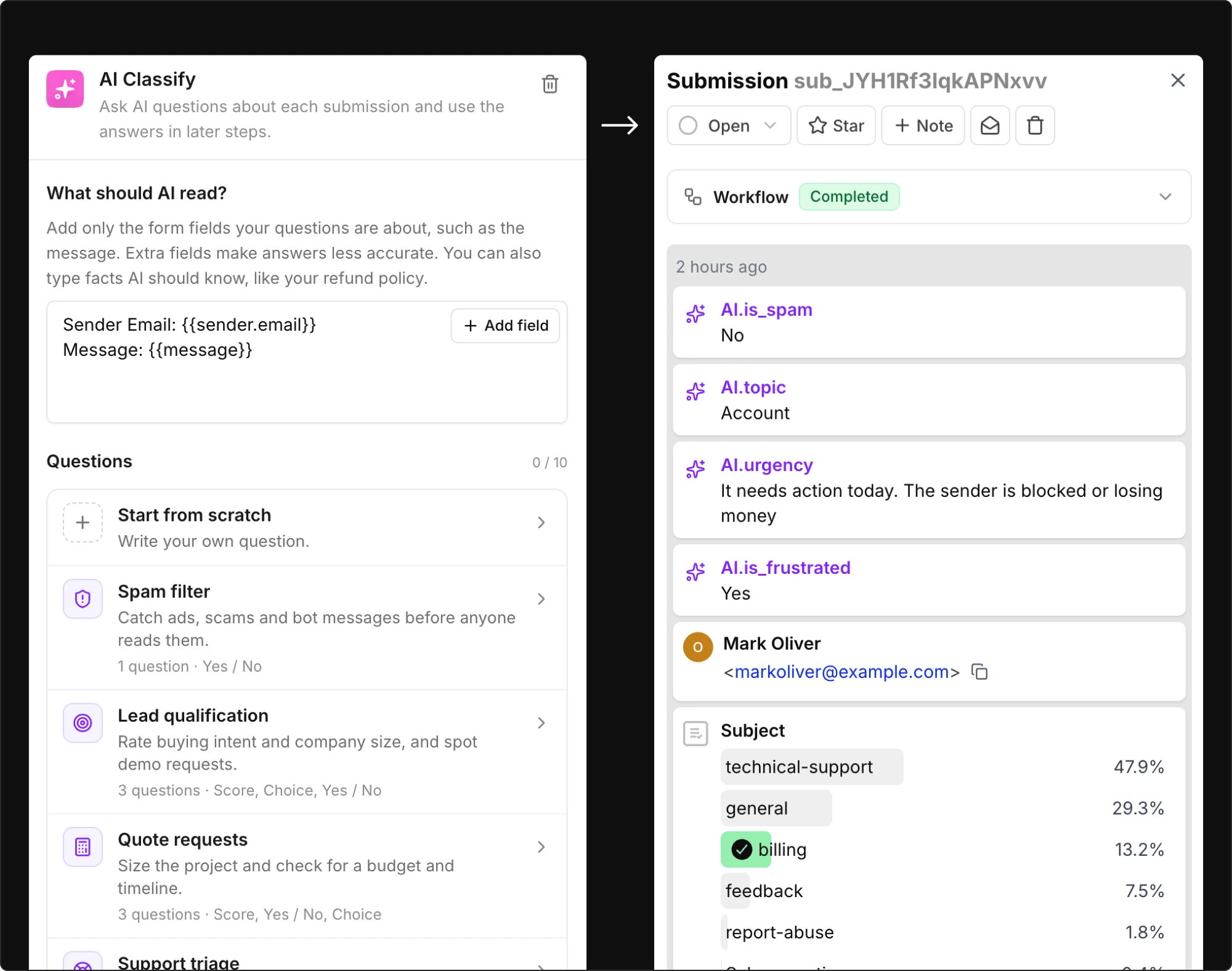
AI Classify is now available on every plan. It is a new step in your form’s Workflow that reads each submission, answers the questions you set up, and hands the answers to the steps after it.
Until now, If / else conditions could only check values the sender picked or typed in a fixed format: a select option, a budget, an email domain. A free-text message was out of reach. With AI Classify, one contact form can send pricing questions to sales, bug reports to support and invoice questions to billing, all based on what the sender wrote. This workflow uses the ready-made Route to a team question set:
                     ╭─────────────────────╮
                     │ Submission received │
                     ╰──────────┬──────────╯
                     ╭──────────▼──────────╮
                     │     AI Classify     │
                     │   Route to a team   │
                     ╰──────────┬──────────╯
                     ╭──────────▼──────────╮
                     │      If / else      │
                     ╰──────────┬──────────╯
       ╭────────────────┬───────┴────────┬────────────────╮
       │ If: team       │ Else if: team  │ Else if: team  │ Else
       │ equals sales   │ equals support │ equals billing │
╭──────▼──────╮  ╭──────▼──────╮  ╭──────▼──────╮  ╭──────▼──────╮
│    Email    │  │    Email    │  │    Email    │  │    Email    │
│   sales@    │  │  support@   │  │  billing@   │  │   hello@    │
╰─────────────╯  ╰─────────────╯  ╰─────────────╯  ╰─────────────╯
New
- Ask in plain words: Each step holds 1 to 10 questions. Write the question, pick an answer type and give it a Question ID such as
is_spam. - Three answer types: Choice picks one of your options, such as
sales,supportorbilling. Score rates the submission on levels you describe, such as urgency or buying intent. Yes / No decides whether something is true. - You choose what AI reads: What should AI read? holds the fields AI sees, inserted with Add field, plus fixed facts such as what you sell or your refund policy. Nothing else from the submission is sent.
- 25 ready-made question sets: Start from sets for spam filtering, lead qualification, support triage, routing to a team, refunds, job applications, bug reports and more, plus 11 industry sets. Or choose Start from scratch.
- Answers for every later step: Use
{{ai.classify.<question_id>}}in If / else conditions, email notifications and autoresponders, webhook payloads, Slack and Discord messages, and Google Sheets columns. - Confidence settings: A Score answer stays empty when AI is less sure than the Minimum confidence, and the submission shows Needs review. A Yes / No answer is Yes only when AI’s confidence reaches the Yes threshold. Route unsure submissions to a person instead of guessing.
- Answers on every submission: Each submission shows its answers above the sender details, and its Workflow section shows how the step ran.
- Answer counts in Analytics: The form’s Analytics page counts the answers to each question across all submissions, such as how many were spam or how many leads asked for a demo.
- Retry when AI fails: Temporary failures are retried automatically. Otherwise the workflow stops at the step, and Retry continues from there without running earlier steps again.
Availability
| Plan | AI Classify steps per workflow |
|---|---|
| Free | 1 |
| Pro and Business | Up to 5 |
Each step answers up to 10 questions, and one path can hold up to 3 AI Classify steps. Answer counts on the Analytics page are on Pro and higher, like the rest of Analytics. For forms in a workspace, the workspace owner’s plan applies. See pricing for plan details.
AI Classify runs only for submissions received after you publish the step. See what is sent to AI for exactly what leaves Forminit.
Get started
- Open a form in your dashboard and select Workflow in the form header (desktop layout).
- Select + beneath Submission received and choose AI Classify from the AI group.
- In What should AI read?, select Add field to insert the fields your questions are about.
- Select Add question and pick a ready-made question set, or choose Start from scratch.
- Add an If / else step after AI Classify to route on the answers, then select Publish.
- Send a test submission and check its answers. The workflow’s Test button is a dry run and does not call AI.
See the AI Classify documentation for every setting, all 25 question sets and example workflows.